
Thermalright Trofeo Vision
4.3Editor score
9.16 inch wide screen
TRCC software with DIY themes
Plug and play USB C
Adding an LCD Screen for PC Case transforms your rig into a modern workstation with real-time monitoring and custom visuals. These displays let you track temperatures, fan speeds, and media without leaving your game or workflow. They blend functionality with style for a truly personalized setup.
We compared ten top-rated models based on resolution, software compatibility, mounting flexibility, and ease of use. Each option offers unique features like ARGB lighting, touchscreen input, or specialized case integration. Our analysis highlights the strengths and trade-offs of every model to help you choose wisely.
Every pick below shows specific use cases, pros, cons, and detailed specs to match your needs. Remember that availability and pricing can change frequently on retailer sites. Check the latest details before purchasing to ensure you get the best value and compatibility for your specific build.
4.3Editor score

4.4Editor score

4.2Editor score
As an Amazon Associate we earn from qualifying purchases.
This side by side comparison highlights the key specifications and unique attributes of all ten models. Use this table to quickly identify resolution sizes, connection types, and special features that match your specific case and software requirements.




The Lian Li SM088X stands out as the most versatile LCD Screen for PC Case on this list. With an 8.8 inch display and L Connect 3 software, it offers robust monitoring and customization options that appeal to enthusiasts. Its high rating reflects strong build quality and user satisfaction.
We may earn a commission when you buy through this link, at no additional cost to you.
This screen functions as a true secondary display, allowing you to move hardware stats or media to the case without using GPU ports. The flexible mounting bracket supports height and tilt adjustments, ensuring optimal visibility. The diffused ARGB lighting adds a cohesive aesthetic to your build.
While it requires Windows for full functionality and comes at a premium price, the value provided is significant. Users appreciate the ability to upload custom videos and photos. The plug and play USB connection makes setup straightforward for most systems.
If you want a polished, feature rich display that integrates seamlessly into modern builds, this is the top choice. It suits gamers and professionals alike who value both real-time monitoring and visual style. Check the latest availability to secure this model.
The unique USB powered design lets this screen act as an independent monitor, freeing up your main display for tasks.
Built in lighting syncs with your system via L Connect 3, ensuring your case looks as good as it performs.
We may earn a commission when you buy through this link, at no additional cost to you.
The darkFlash V92 brings an ultra-wide 9.2 inch display to the market, offering a unique viewing area for stats. It uses the Station Space software which provides widgets for CPU, GPU, and weather without needing AIDA64. This simplifies setup for users who want simplicity.
We may earn a commission when you buy through this link, at no additional cost to you.
The slim aluminum body measures only 12mm thick, making it easy to hide in tight case spaces. Connection options include external USB or internal 9-pin headers, keeping GPU ports free. The included mounting bracket ensures secure installation on fan frames or panels.
A key limitation is that Station Space must remain running in the background to display data. Additionally, it is not compatible with Linux or macOS systems. Despite these constraints, the bright visuals and compact design make it a strong contender.
Choose this screen if you prefer a clean, wide display for system health and do not use non-Windows OS. It offers excellent value for the size and resolution provided. Ensure your case has clearance before purchasing.
The ultra-wide aspect ratio allows you to see more data points at once compared to standard square panels.
Station Space is free and preconfigured, removing the complexity of setting up AIDA64 scripts for data display.
We may earn a commission when you buy through this link, at no additional cost to you.
WOWNOVA simplifies the installation process with a single cable connection that requires just one click to get started. The software allows you to use the screen as an extended desktop monitor, which is a rare feature in this category. It supports dynamic video themes out of the box.
We may earn a commission when you buy through this link, at no additional cost to you.
You can upload your own videos or select from a variety of preset dynamic themes to personalize the look. The IPS panel offers full viewing angles and an aluminum housing for durability. The bright white finish looks clean and modern in many builds.
The desktop mode adds versatility, letting you use the screen as a true second display beyond just stats. While it is limited to Windows 10 and 11, the ease of use is a major plus for less tech-savvy users. Support is responsive to any issues.
This model is perfect for anyone who wants a hassle-free experience with creative visual options. It balances functionality and ease of use effectively. Check the color availability if you prefer a different aesthetic finish.
The added desktop mode means you can use this as a practical second screen for productivity as well as monitoring.
Support for video themes lets you animate your case with clips rather than static images or numbers only.
We may earn a commission when you buy through this link, at no additional cost to you.
The wisecoco 12.6 inch bar delivers a massive viewing area that transforms your case into a multimedia hub. With built-in speakers and HDMI input, it can play audio and video independently of the PC monitoring software. This makes it ideal for the Hyte Y60 case.
We may earn a commission when you buy through this link, at no additional cost to you.
The 1920×515 resolution ensures sharp text and vibrant visuals for any content you choose to display. The package includes a screwdriver for easy installation on the case panel. It also functions as a standalone monitor on a desk with an HDMI source.
Due to its size, it requires a dedicated panel space and an HDMI port or capture card if not using the PC graphics output. However, the immersive experience is unmatched for content consumption. It bridges the gap between a PC monitor and a display accessory.
If you want a large, feature-rich display that handles media and stats with equal ease, this is a standout choice. It adds significant value through audio and size. Ensure your case supports this specific bracket configuration.
Built-in speakers remove the need for external sound equipment, making the unit self-contained for media playback.
Beyond PC cases, you can mount this on a desk using HDMI to create a dedicated status or secondary screen.
We may earn a commission when you buy through this link, at no additional cost to you.
This Hosyond model is unique for offering capacitive touchscreen capability at a budget-friendly price point. It works well with AIDA64 for hardware monitoring and supports a wide range of systems including Raspberry Pi and Windows. The high brightness ensures visibility in various lighting.
We may earn a commission when you buy through this link, at no additional cost to you.
You can control the interface directly with your fingers, adding an interactive element to your case build. HDMI input makes it versatile for external sources. The energy efficient design consumes very little power via USB, keeping heat low.
Setup might require installing drivers depending on your OS, and AIDA64 is not included. However, the touch functionality opens up customization possibilities not available on standard displays. It is a great option for interactive builds.
Choose this if you want hands-on control for your stats without needing a separate input device. It offers great versatility for hobbyists using Linux or single-board computers. Check the compatibility list for your specific OS version.
The touchscreen lets you click widgets and change settings directly on the panel for a more immersive experience.
Support for multiple operating systems ensures it works even if you are using a niche or developer environment.
We may earn a commission when you buy through this link, at no additional cost to you.
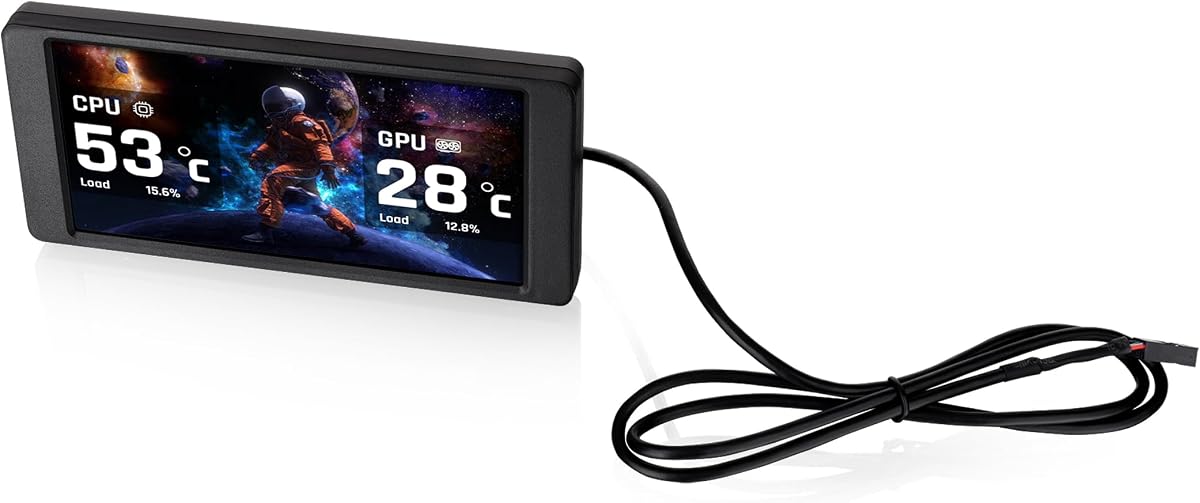
The Thermalright Trofeo Vision offers an excellent balance of price and performance for those entering the LCD Screen for PC Case market. It features a 9.16 inch wide display with sharp resolution. The TRCC software provides a variety of preset themes for easy customization.
We may earn a commission when you buy through this link, at no additional cost to you.
Installation is straightforward thanks to the USB-C connection which handles both power and data. The compact dimensions allow it to fit in tight spaces without obstructing airflow. Users appreciate the clean interface and reliable tracking of CPU and GPU stats.
While it leans into the Thermalright ecosystem, it works well as a standalone monitor. The build quality is solid for the price. It might require more initial setup than plug-and-play models, but the results are worth it.
For budget-conscious buyers who still want a wide, high-quality display, this is the smart choice. It delivers on core functionality without unnecessary bloat. Check the software version for your specific system before buying.
The aspect ratio is optimized for system data bars, making it easier to read stats side by side.
A single USB-C line reduces clutter inside the case compared to older dual-cable solutions.
We may earn a commission when you buy through this link, at no additional cost to you.
This Thermaltake kit is designed specifically for the View 370 and View 390 series chassis. It offers a dedicated solution that matches the case design perfectly. The TT RGB PLUS 3.0 software allows for deep customization and data tracking for components.
We may earn a commission when you buy through this link, at no additional cost to you.
With support for JPG, GIF, and MP4 files, you can display animated graphics. The resolution is sufficient for clear text and images. Installation uses standard mounting points provided by the case. It is a cohesive addition to the Thermaltake ecosystem.
Its main limitation is the restricted compatibility with only specific chassis models. If you have a different case, you may need to create custom mounts. The smaller size compared to others may not show as much data simultaneously.
If you own a supported chassis and want seamless integration, this is the logical choice. It enhances the aesthetic appeal of that specific line of cases. Verify your case model before purchasing to ensure compatibility.
The screen fits into the case design without needing extra brackets, maintaining a clean aesthetic look.
Support for various file formats lets you add moving animations that make the display more dynamic.
We may earn a commission when you buy through this link, at no additional cost to you.
GeeekPi brings a high-resolution touch experience to the Hyte Y60 case with this 12.6 inch model. It supports up to 10 points of touch, which is rare for this category. The built-in speakers add audio capability for media or alerts.
We may earn a commission when you buy through this link, at no additional cost to you.
The resolution is high for a wide screen, ensuring crisp text for system data. Installation is simplified with included tools and a perfect fit for the case panel. The screen can also be used in landscape or portrait modes with ease.
The touch layer adds complexity and weight, but the interaction is smooth and responsive. It is a premium addition to the Y60 build. Be sure to remove the protective film to get the best clarity.
If you want interaction and audio from a large case screen, this model delivers well. It complements the Y60 case perfectly for a high-end look. Confirm space constraints on your desk or case.
The 10-point multi-touch ensures that gestures and clicks are registered accurately on the wide screen.
Integrated speakers save port space and cable clutter for audio output from the display itself.
We may earn a commission when you buy through this link, at no additional cost to you.
This Thermalright model introduces a magnetic suction design that allows for tool-free installation. You can stick it to metal surfaces inside the case without drilling or screws. The TRCC software handles monitoring and startup, making it easy to use.
We may earn a commission when you buy through this link, at no additional cost to you.
The 9.16 inch screen offers vibrant color reproduction and sharp resolution. It supports static and dynamic image switching effectively. The ability to reposition it easily is a major benefit for modders who like to tweak their builds.
Ensure your case has suitable metal spots for the magnets to adhere to. While convenient, it might be less secure than brackets in rough handling scenarios. The software auto-starts automatically for a seamless experience.
Choose this if you prefer a clean install without visible screws and want to move the screen easily. It is a great option for quick prototyping. Verify the magnet compatibility with your case materials.
The magnetic base allows you to change the display location instantly without tools or permanent changes.
The software is designed to start with Windows, so the screen is always ready when you turn on the PC.
We may earn a commission when you buy through this link, at no additional cost to you.
This 6.86 inch display is ideal for CPU cooler panels or smaller case spots. It is the most compact and affordable option in this list. The magnetic design makes it easy to attach to AIO radiators or metal case parts. The software enables custom dynamic themes.
We may earn a commission when you buy through this link, at no additional cost to you.
Despite its size, the resolution is sufficient for simple data readouts. It supports the TRCC software suite for monitoring. It is perfect for users who want a small accent screen without investing in a large monitor.
The resolution is lower than larger models, so don't expect wide data bars. It is better for simple logos or essential stats. The auto-start feature ensures convenience and minimal setup steps for the user.
If you need a small, dedicated spot for logos or temps on a cooler, this is the right choice. It adds a subtle tech touch. Ensure your cooler panel has the right dimensions for this screen.
The small size fits on radiator top panels where larger screens would not fit at all.
This is the most affordable way to add color and monitoring to a PC case build.
We may earn a commission when you buy through this link, at no additional cost to you.
Selecting the right display involves checking size, software, and physical fit. Use this guide to match the screen with your case and needs effectively.
Larger screens like 12.6 inches offer more real estate for data but require bigger case space. Smaller models fit on coolers or tight panels. Ensure the resolution is high enough for crisp text.
Most screens use specific apps like TRCC or Station Space. Check if your OS is supported. Some require AIDA64 which adds cost. Choose software that you find intuitive and stable.
USB-C and USB 2.0 headers are common. Some require HDMI which uses up a port. Ensure your motherboard or GPU has the necessary ports available for the screen connection.
Mounts range from brackets to magnets. Brackets are secure but need screws. Magnets are easy to move but might be less sturdy. Match the mount to your case structure.
Some screens offer touch inputs, audio speakers, or ARGB lighting. Decide if these features are necessary for your build. They add value but can increase the price point significantly.
Most are wide format for stats, but some support vertical mounting. Check if the software allows rotation. Vertical might be better for certain case panels.
USB powered screens are convenient but draw from USB headers. Ensure your PSU or motherboard can handle the load. Some models offer low power efficiency for better management.
Prices vary based on size and features. Basic models are cheaper while touch or large screens cost more. Balance what you need with what you can afford for the best value.
Start by connecting the screen to a USB header or port. Install the provided software on your PC. Follow the setup wizard to configure the display position and preferred data metrics.
Customize your layout using the software tools. You can upload images or select themes to personalize the look. Adjust brightness levels to prevent glare and ensure eye comfort.
Clean the screen with a soft microfiber cloth. Avoid using harsh chemicals or alcohol that might damage the panel. Keep the area around the screen dust-free to prevent overheating.
Most models draw power from your USB ports or motherboard headers. Some larger displays require a DC cable or HDMI power. Always check the power requirements before installation to ensure compatibility with your system.
Yes, many options include their own software like TRCC or Station Space. You do not need AIDA64 unless specified. Always verify the software requirements on the product page for full functionality.
Check the dimensions and mounting type against your case manual. Some screens fit specific panels like Hyte Y60 or Thermaltake View. Others are universal with brackets that attach to fan mounts or flat surfaces.
Most software is Windows-based. Some models support Linux or macOS but you need to check compatibility. Universal HDMI screens work on Linux with generic drivers but software features may vary.
Yes, screens with USB or HDMI input can often act as a second display. This lets you show video or extra data while gaming. Look for dual-mode support in the product description for this use case.
Most are designed to be plug and play. Some require mounting brackets or software setup. Detailed instructions are usually included. If you can plug in a USB, you can install one of these screens.
We highlighted ten top models ranging from large multimedia displays to compact sensor panels. The Lian Li SM088X and Thermalright Trofeo Vision stand out for their versatility and value. Your choice depends on size preference and software needs.
Prioritize compatibility with your case and OS. Consider if you need touch, audio, or a specific resolution. The right screen adds both function and style to your build. Ensure you have the necessary ports and clearance.
Prices and availability change often so verify details before buying. Check the latest specs and user reviews to confirm performance. With the right pick, you can elevate your setup with a modern professional display.